
Work / Safety Incident Tracker
Shipped
Safety Incident Tracker
Replacing two intake forms and an Excel spreadsheet with one connected Microsoft 365 workflow, designed and built solo in five business days.
Problem
Safety incidents came in through two separate intake forms and were tracked in an Excel spreadsheet that was getting out of control.
My Role
Sole designer and builder: requirements, UX, Microsoft 365 configuration, automation, documentation, and training. Requested directly by IT leadership.
Tools
SharePoint · Microsoft Forms · Power Automate · Teams
Outcome
Delivered in 5 business days. Recognized by IT leadership and the head of the IT project management team.


Screens are studio redraws. Names and data are invented.
The Challenge
Leadership and HR needed a better way to manage safety incidents. Reports were coming in through two different intake forms, and everything ended up in a single Excel spreadsheet that was becoming hard to manage.
IT leadership asked me to replace it within five business days, using tools the company already had.
How might I turn two forms and a spreadsheet into one workflow that HR, floor supervisors, and the safety team could all rely on, in one week?
Who it's for
The tracker served three groups across both company sites:
Floor supervisors
They report incidents and need a fast, consistent way to submit them.
The safety team (Environmental Health & Safety)
They investigate incidents and need to find, filter, and follow up on records by site.
HR and leadership
They need an accurate, traceable log and a clear view of what is open.
Solution approach
I started with the existing spreadsheet and both intake forms to map what information was being collected and where it overlapped.
Rather than building a single form, I designed an end-to-end workflow: one intake point, automatic record creation, and organized views for the people who manage incidents.
The experience included:
-
A dedicated safety incident intake form
-
Automatic transfer of submitted information into the incident log
-
Automatic creation of unique incident IDs
-
A central SharePoint incident list
-
Filtered views that make different sets of records easier to review
-
Admin views and supporting navigation
-
Site-specific Microsoft Teams channels
-
Documentation and guidance for continued use
The goal was to give each part of the workflow a clear purpose without adding complexity.
Key decisions
-
Merged two intake forms into one, so every incident starts the same way.
-
Used Microsoft Forms for intake, because it was familiar to users, fast to deploy, and needed no new licensing.
-
Automated only predictable steps, like record creation and IDs, and left judgment calls to people.
-
Organized by site, with filtered views and a Teams channel for each location.
Incident intake
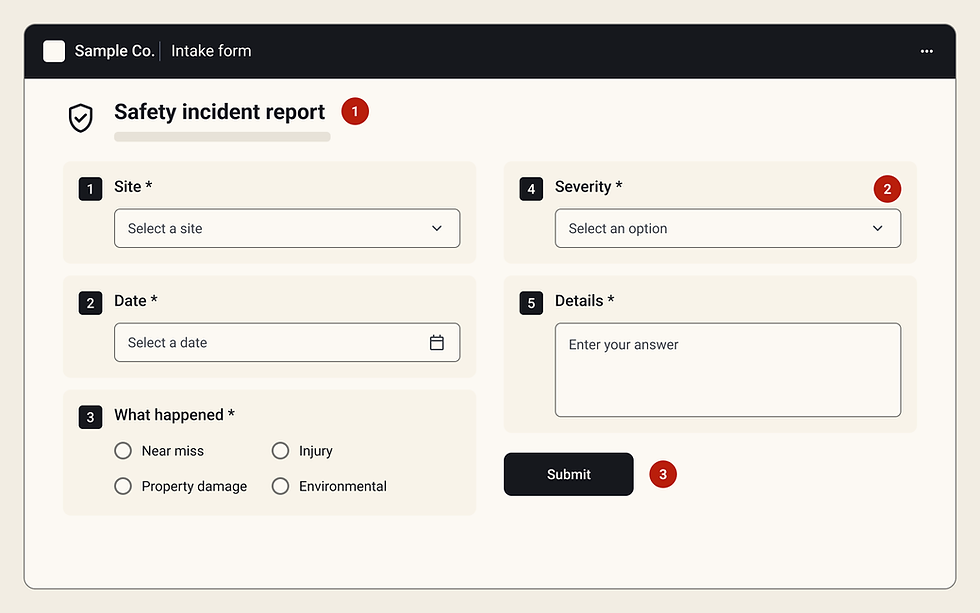
The intake form gave everyone the same starting point for reporting an incident. Microsoft Forms let the solution deploy quickly in the existing environment while giving users a structured way to provide what each record needed.
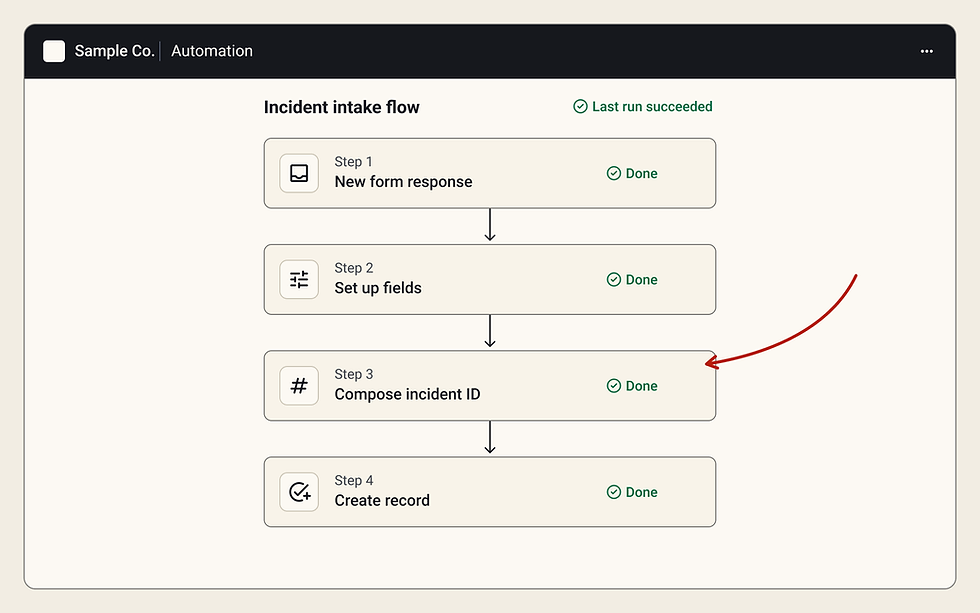
Behind the form, Power Automate connected each submission to the tracker, so nobody had to retype it as a separate incident record.
Fig. 04 · Incident intake

What this solved
-
Structured submission. One consistent entry point for incident information.
-
Less duplicate handling. Submitted information moves into the tracker automatically.
-
Traceable records. Every incident gets a unique ID as part of the workflow.
Centralized tracking
Submitted incidents were organized in a SharePoint tracker. Instead of showing every record the same way, it included filtered views, so the people managing incidents could see information in useful contexts.
Supporting navigation and admin views turned the underlying list into an intentional app instead of an unstructured pile of data. The tracker also connected users to Microsoft Teams spaces organized by site, keeping related conversations inside the workflow.


Automation
Automation handled the connection between intake and tracking. When someone submitted an incident, Power Automate created and organized the matching record, including its unique ID.
This was targeted automation on purpose. Instead of trying to automate decisions that needed human judgment, I focused on predictable system work that could happen consistently in the background. People stayed involved where it mattered, and the manual handling between systems went away.

Delivery
Time was the key constraint. With five business days, I had to prioritize: first the workflow needed to make the system work and make sense, then everything else could wait for a later release.
Here's how the five days went:
-
Day 1: Review and map. I reviewed the spreadsheet, both intake forms, and the documentation, then mapped the data and the workflow.
-
Day 2: Build the form. I merged the two intake forms into one consistent Microsoft Form.
-
Day 3: Feedback and refine. I gathered feedback and made the final changes to the form.
-
Days 4–5: Build the workflow. I built the Power Automate flow, the SharePoint incident log with unique IDs, filtered and admin views, navigation, and a Teams channel for each site.
-
After launch: Train users. I wrote the training guide and ran user training.
After delivery, I trained the business owner so they could run the system on their own.
Design Outcomes
A solo build on a one-week deadline, using only tools the company already owned.
Shipped in 5 days
From request to a working system in one week. Designed, built, documented, and trained solo.
3 sources → 1 workflow
Two intake forms and a spreadsheet became one connected system. Every report becomes a tracked record with a unique ID automatically.
Recognized by leadership
Recognized by IT leadership and the head of the IT project management team for living the company's core values.
Learnings
-
Constraints can sharpen priorities. A five-day timeline meant separating the essential workflow from features that could wait. Designing the smallest complete experience was worth more than building the biggest possible one.
-
UX goes beyond the interface. The experience depended on how Forms, SharePoint, Power Automate, and Teams worked together. Designing the connections between those tools mattered as much as designing the screens.
-
Automation works best when it has a clear job. The best opportunities were predictable system tasks, like moving information and creating records, not decisions that needed human context or judgment.
What I'd do next
-
Gather usage feedback. Check in with supervisors, the safety team, and HR after a few weeks of real use to see where the workflow holds up and where it doesn't.
-
Expand automation carefully. Look for more predictable, low-judgment steps to automate, while keeping human review where it matters.
-
Evaluate scaling. See whether the same intake-to-tracking pattern could support other request types or departments.


Have a tool that needs this kind of attention? Let's talk about it.